

Description
Download LeaderTask – Free Secure Organizer for Windows, Mac, Android & iOS
Overview
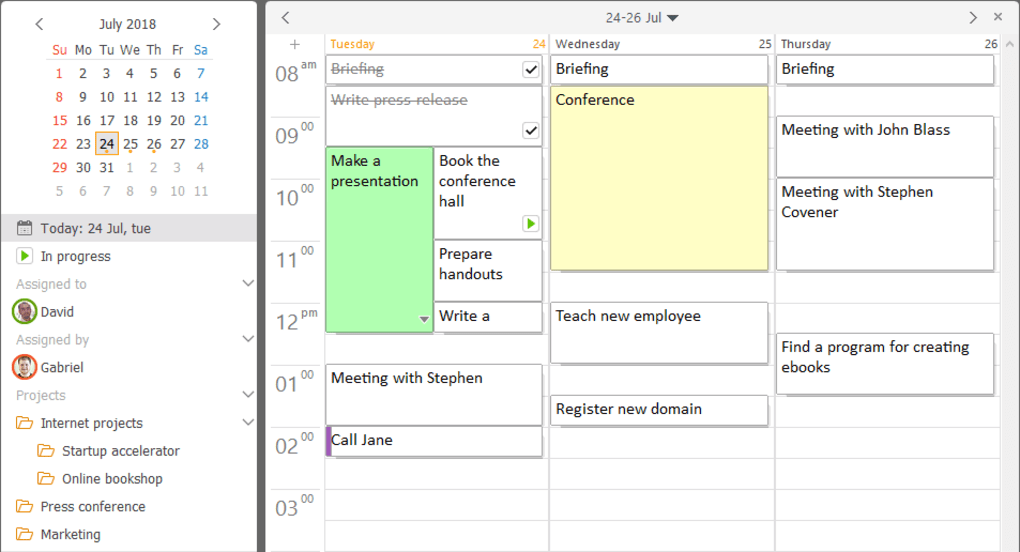
LeaderTask is a complete organization tool designed for people who are constantly on the move. Whether you are a busy professional juggling multiple projects, a stay‑at‑home parent coordinating family activities, or a student trying to keep track of assignments and extracurricular events, LeaderTask offers a flexible, customizable platform to bring order to your day. The app mirrors the familiar layout of Microsoft OneNote, using colored tabs that separate business‑related duties—such as web design, development, support calls, and meetings—from personal categories like reading, sports, and recreation. Each day’s calendar is split into two columns: a left‑hand to‑do list for quick task entry and a right‑hand notes area for detailed information. Reminders can be set in fifteen‑minute increments, popping up unobtrusively at the bottom left of the screen. One of LeaderTask’s strongest selling points is its seamless sync with Google Mail and Google Calendar, ensuring that emails, events, and contacts are always up‑to‑date across devices. In short, LeaderTask combines a robust planner, a task manager, and a contact hub into a single, secure, and free application that works on Windows, macOS, Android, and iOS. Its high level of customization means you can tailor the interface to match your workflow, making it a versatile choice for anyone who needs to manage time, projects, and people efficiently.
Key Features
- Multi‑Tab Interface: Separate business, personal, and hobby categories with color‑coded tabs for instant visual organization.
- Dual‑Column Daily View: Left column for quick to‑do items, right column for detailed notes, links, and attachments.
- Granular Reminders: Set alerts in 15‑minute intervals; notifications appear at the bottom left of the screen.
- Google Sync: Two‑way synchronization with Gmail, Google Calendar, and Google Contacts for seamless data integration.
- Customizable Templates: Save and reuse task or project templates to accelerate repetitive planning.
- Birthday & Anniversary Tracker: Store important dates and receive automatic reminders.
- Cross‑Platform Support: Native apps for Windows, macOS, Android, and iOS, with cloud‑based data syncing.
- Secure Data Storage: End‑to‑end encryption protects personal and professional information.
- Export Options: Export tasks, notes, and calendars to PDF, CSV, or iCal formats.
- Offline Mode: Access and edit your planner without an internet connection; changes sync once you’re back online.
Each feature has been built with the user’s productivity in mind. The multi‑tab interface reduces visual clutter by grouping related activities, while the dual‑column daily view mimics the classic paper planner many people love, but with the added power of digital search and filtering. Reminders are not limited to whole‑hour blocks; the fifteen‑minute granularity lets you break down tasks into bite‑size intervals, a method proven to improve focus. Google sync eliminates the need for manual data entry, and the birthday tracker ensures you never miss an important celebration again. By offering export capabilities, LeaderTask lets you keep a hard copy backup or share project details with teammates who may not use the app. The offline mode is particularly handy for commuters or travelers who experience spotty connectivity, guaranteeing that productivity never stalls.
Installation & Usage Instructions
Step‑by‑Step Installation
Windows & macOS: Visit the official LeaderTask website and click the “Download for Windows” or “Download for Mac” button. The installer will launch; follow the on‑screen prompts to accept the license agreement, choose an installation folder, and complete the setup. Once installed, launch LeaderTask from the desktop shortcut or the Start / Applications menu.
Android: Open Google Play Store, search for “LeaderTask Organizer,” and tap “Install.” The app will download automatically; once finished, tap “Open” to begin the initial configuration.
iOS: Open the Apple App Store, locate “LeaderTask Planner,” and tap the cloud‑download icon. After installation, launch the app from the home screen.
First‑Time Setup
Upon first launch, you’ll be guided through a short wizard. Enter your name, select your primary language, and choose a default theme (light or dark). Next, connect your Google account to enable synchronization—simply click “Connect Google,” sign in, and grant the requested permissions. LeaderTask will automatically import your contacts, calendar events, and email threads relevant to tasks.
Daily Workflow
1. Create a New Tab: Click the “+” icon on the tab bar, choose a category (e.g., “Work – Development”), and assign a color.
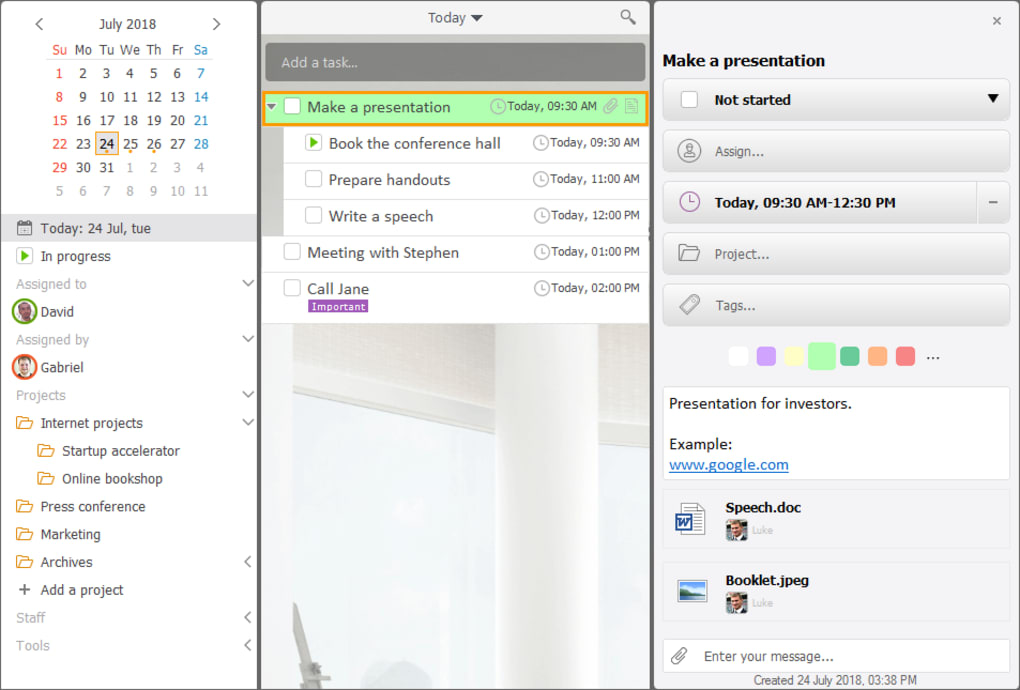
2. Add Tasks: In the left column of the daily view, type a task, set a due time, and press “Enter.” Use the checkbox to mark completion.
3. Attach Notes: Click the right‑hand column, type detailed notes, attach files, or paste links.
4. Set Reminders: Hover over a task, click the bell icon, and select a reminder interval (e.g., 15 minutes before).
5. Sync & Review: Press the sync button at the top right to push changes to Google services and other devices.
Over time, you can refine your workflow by creating reusable templates (via Settings → Templates) and customizing notification sounds. The built‑in search bar instantly filters tasks, notes, or contacts, making it easy to locate information across months of entries. LeaderTask also offers a “Focus Mode” that hides all non‑essential tabs, allowing you to concentrate on a single project without distraction.
Compatibility, Pros & Cons
Operating System Support
LeaderTask runs natively on the following platforms:
- Windows 10, 11 (64‑bit)
- macOS 11 (Big Sur) and later
- Android 8.0 (Oreo) and above
- iOS 13 and above (iPadOS compatible)
The application utilizes cloud‑based synchronization, so data is instantly available across all devices, regardless of operating system. Updates are delivered automatically through each platform’s native store (Microsoft Store, App Store, Google Play), ensuring you always have the latest security patches and feature enhancements.
Pros
- Highly customizable interface that adapts to both professional and personal needs.
- Free core version with no hidden fees; premium add‑ons are optional.
- Seamless Google integration eliminates duplicate data entry.
- Granular 15‑minute reminder system boosts time‑boxing productivity.
- Cross‑platform sync keeps your planner consistent on desktop and mobile.
- End‑to‑end encryption safeguards sensitive project information.
- Offline access ensures productivity without internet connectivity.
Cons
- Initial learning curve for users unfamiliar with dual‑column layout.
- Premium features (advanced analytics, team collaboration) require a subscription.
- No native integration with Microsoft Outlook or Apple Calendar (Google only).
- Limited theme options beyond light/dark at present.
- Export formats could be expanded to include JSON for developers.
Frequently Asked Questions
Is LeaderTask really free to use?
Yes, the core organizer—including task management, calendar sync, and reminders—is completely free. A optional premium tier adds advanced reporting, team collaboration tools, and custom theme packs for a monthly fee.
Can I sync LeaderTask with calendars other than Google?
Currently LeaderTask offers native two‑way sync only with Google Calendar and Gmail. However, you can import iCal files manually or use third‑party sync services to connect Outlook or Apple Calendar.
How secure is my data in LeaderTask?
LeaderTask uses end‑to‑end AES‑256 encryption for all stored data and TLS 1.3 for data in transit. Your Google credentials are never stored on our servers; we only use OAuth tokens for secure authentication.
Is there a mobile app, and does it have the same features as the desktop version?
Yes, LeaderTask provides native apps for Android and iOS. While the mobile UI is optimized for smaller screens, all major features—task creation, reminders, Google sync, and note‑taking—are fully functional.
Can I export my tasks and calendar entries?
Absolutely. LeaderTask lets you export tasks, notes, and calendar events to PDF, CSV, or iCal formats. This is useful for backups, sharing with teammates who don’t use the app, or importing into other productivity tools.
Conclusion & Call to Action
LeaderTask stands out as a versatile, free, and secure organizer that bridges the gap between personal planning and professional project management. Its multi‑tab layout, granular reminders, and tight Google integration make it an excellent choice for anyone looking to regain control over a packed schedule. While the learning curve may be a slight hurdle for newcomers, the payoff in productivity and peace of mind is well worth the investment of a few minutes. Whether you’re managing a development sprint, coordinating family activities, or balancing coursework, LeaderTask equips you with the tools to stay on top of every commitment.
Ready to experience a more organized life? Download LeaderTask now for Windows, macOS, Android, or iOS and start planning your day with confidence. The free version offers everything you need to get started, and you can upgrade to premium anytime you want to unlock advanced analytics and team collaboration features.
Pros: Customizable tabs, Google sync, granular reminders, cross‑platform, free core version.
Cons: No native Outlook integration, limited theme options, premium needed for team features.
Guides & Tutorials for LeaderTask
How to install LeaderTask
- Click the Preview / Download button above.
- Once redirected, accept the terms and click Install.
- Wait for the LeaderTask download to finish on your device.
How to use LeaderTask
This software is primarily used for its core features described above. Open the app after installation to explore its capabilities.
User Reviews for LeaderTask 0
No reviews found





